Color haircut changer style on
 3.30
3.30
Professional HD Camera App: Capture Bright HD Selfie & Record Stunning Moments
4.40
The Official Voting App
3.90
Get Smart About Your Skin with Fully Personalized Beauty Tech!
4.80
Transform your sweet selfies with Selfie Beauty Camera Filters And Effects!
4.60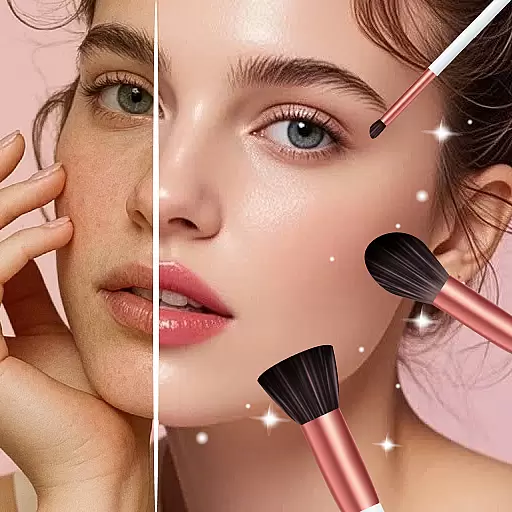
Beauty camera to take nature selfie with photo filter. Photo makeup face editor.
4.50
Beauty camera & Selfie camera for perfect selfie with filter, sticker, makeup
4.70
Beauty Camera - Selfie Camera with sweet selfie, makeup, filter, sticker, editor
4.50
Change your hairstyle and color instantly with AI-powered virtual makeovers.
3.90
Beauty Camera & Selfie Camera snap Beauty selfie with filter, makeup, stickers
4.80
The ultimate beauty membership
4.70
Wacky mirror filter, waves effect & wavy effect to make your own funny videos.
4.60
Unleash your (Pro)tential with the hottest hair, nails and beauty brands!
4.60
DSLR Hd camera capture high quality 4k hd picture with filters and blur editor
4.50
Snap stunning selfies with AI from the Sweet Beauty Camera editor
4.10
The all new Cosmo Prof app offers exclusive pro products, deals, and training.
4.00
Enhance Your Look with Face Analysis, Hair Style Changer, Beauty Score, Rating
3.90
Beauty/age defining ai coach guides you through the exercises in daily routine.
3.30
Your future self face age old or young from camera selfie into beautify videos
4.0