

Effortlessly organize, view and share your photos & videos with Gallery app!
 4.40
4.40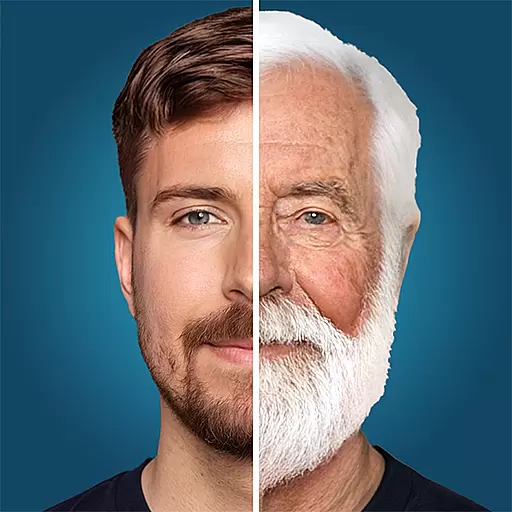
How old age camera Gender Swap App Face Shape Hairstyle App Hair Styler App fun!
4.00
Amazing Photo Effects - The most fun you can have with your photos!
4.70
Movie camera, supports pro recording settings for filming. Try it and be amazed!
4.50
Create amazing frames with up to five photos. Rounded corners, effects and more!
3.60
Easily create custom gifts, cards, photo books & more on the Shutterfly app!
4.60
Discover & download millions of art for The Frame TV or Hisense CanvasTV
4.60
Welcome to ProShot, the most powerful camera app on Android.
4.20
Your Family Calendar + Photos. Manage your Skylight Calendar and Skylight Frame.
4.40
Photo prints, cards, & gifts at Walgreens. Easy ordering & fast local pickup !
4.80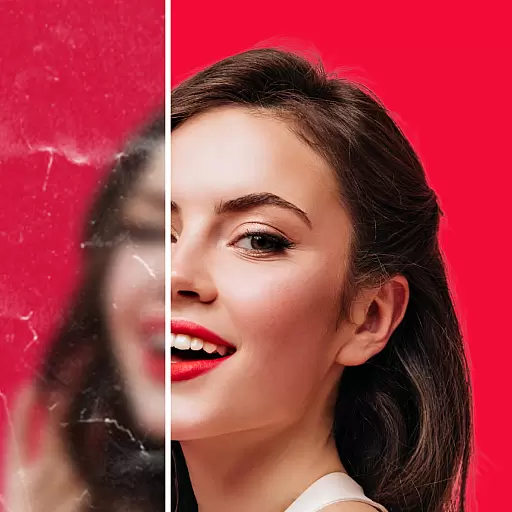
Create AI photos & videos with Enhancer; restore, fix, beautify, enhance photos
4.50
Fit multiple photos on one post. Create carousels & scroll layouts for Instagram
4.50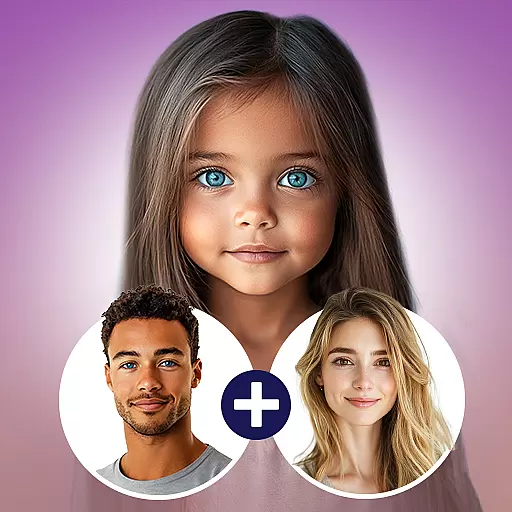
Future baby face generator: AI kids generator, kid face! What my baby look like?
4.40
Turn your phone into a professional camera - full DSLR manual photography
4.30
Virtual makeup, hair filters & body tuner—edit from face to full body!
4.20
Create & Edit with AI: AI Remove, Enhance, Retouch, Filter
4.10
Professional quality photo edits with the new Snapseed.
4.00
How would you look like with a differently shaped nose, chin or lips?
3.90
Over 800 film simulation recipes for Fujifilm. Black Friday Offer!
4.0